
Install and set up
-
If you're using Windows 10/11, your computer already has the OneDrive app installed - skip to step 2.
If you don't have Windows 10/11 or Office 2016 / 365 Apps for Business, install the Windows version of the new OneDrive sync app.
-
Start OneDrive Setup.
If you have no accounts signed in to OneDrive
If you don’t currently have an account signed in to OneDrive, use these instructions to start OneDrive.
-
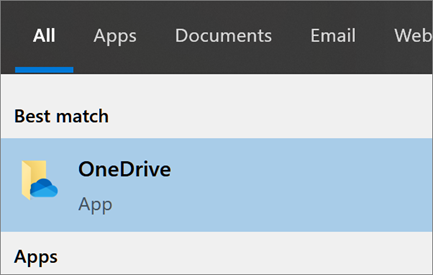
Select the Start button, search for “OneDrive”, and then open it:
-
In Windows 10/11, select OneDrive.
-
-
When OneDrive Setup starts, enter your personal account, or your work or school account, and select Sign in.

Key points in OneDrive Setup
There are two screens in OneDrive Setup that are helpful to watch for:
-
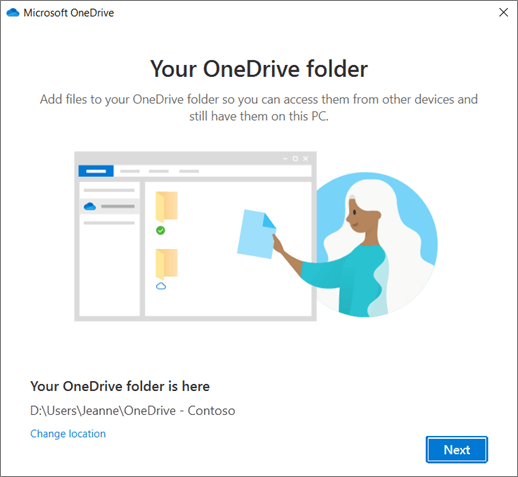
On the This is your OneDrive folder screen, select Next to accept the default folder location for your OneDrive files. If you want to change the folder location, select Change location - this is the best time to make this change.
-
On the All your files, ready and on-demand screen, you'll see how files are marked to show them as online-only, locally available, or always available. Files On-Demand helps you access all your files in OneDrive without having to download all of them and use storage space on your Windows device. Select Next.
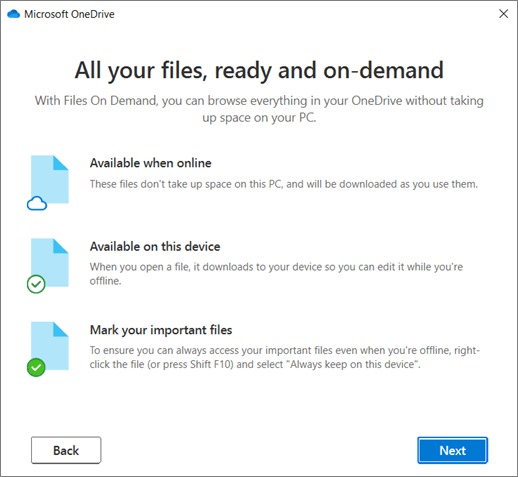
Note: If you were already syncing OneDrive for work or school to your computer (using the previous sync app) and you've just installed the sync app, you won't see the This is your OneDrive folder or the Sync files from your OneDrive screen during OneDrive Setup. The sync app automatically takes over syncing in the same folder location you were using before. To choose which folders you're syncing, right-click the blue cloud icon in the taskbar notification area, and select Settings > Account > Choose folders.
How to add an account in OneDrive
If you already have an account signed in to OneDrive and you want to add or remove another account, you’ll do that in OneDrive Settings.
Important: You can have multiple work or school accounts, but only one Personal OneDrive account.
To add another account to OneDrive on your computer
If you already have a personal OneDrive account set up, you can only add work or school accounts.
-
Select the OneDrive cloud icon in the Windows taskbar or Mac menu bar.
-
Select

-
In Settings, select Account, and then select Add an account.
-
When OneDrive Setup starts, enter your new account, and then select Sign in.
