
OneDrive Files On-Demand helps you access all the files in your cloud storage in OneDrive without having to download them and use storage space on your computer.
When you turn on Files On-Demand, you’ll still see all your files as online-only files in File Explorer, but they won't take up space. When you’re connected to the Internet, you’ll be able to use the files like every other file on your device.
You can also select files and folders to be always available, even if you're offline. OneDrive will download them, and they'll take up space on your PC.
With OneDrive Files On-Demand, you can:
-
Save space on your device by making files online only
-
Set files and folders to be always available locally on your device
-
See important information about files, such as whether they are shared
-
See thumbnails of over 300 different file types even if you don’t have the required application installed to open it
Your files will have these statuses in File Explorer:
|
|
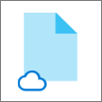
A blue cloud icon next to a OneDrive file or folder indicates that the file is only available online. Online-only files don’t take up space on your computer. You see a cloud icon for each online-only file in File Explorer, but the file doesn’t download to your device until you open it. You can’t open online-only files when your device isn’t connected to the Internet. |
|
|
When you open an online-only file, it downloads to your device and becomes a locally available file. You can open a locally available file anytime, even without Internet access. If you need more space, you can change the file back to online only. Just right-click the file and select “Free up space.” With Storage Sense turned on, these files will become online-only files after the time period you've selected. |
|
|
Only files that you mark as "Always keep on this device" have the green circle with the white check mark. These always available files download to your device and take up space, but they’re always there for you even when you’re offline. |


-
Make sure you’re signed in to OneDrive on your device. Files On-Demand settings are unique to each device, so make sure you turn it on for each device where you want to use it.
-
Select the white or blue OneDrive cloud icon in the Windows taskbar notification area.

(You might need to click the Show hidden icons arrow
 next to the notification area to see the OneDrive icon. If the icon doesn't appear in the notification area, OneDrive might not be running. Select Start, type OneDrive in the search box, and then select OneDrive in the search results.)
 -
Select
 > Settings.
-
If you have a Settings tab, select Save space and download files as you use them box.
-
If you don't have a Settings tab, select Sync and back up, then Advanced settings, then choose how you want to access your files.
-
-
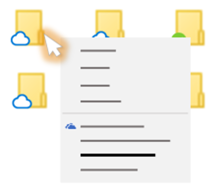
Right-click a file or folder.
-
Select Always keep on this device or Free up space.
Notes:
-
New files or folders created online or on another device appear as online-only to save maximum space. However, if you mark a folder as "Always keep on this device," new files in that folder download to your device as always available files.
-
If a folder is online-only, you can still mark individual files within that folder as always available.
-
Desktop search can search for online-only files by name, but it cannot search the contents within online-only files because they aren't stored on the device.
